Game day Operations Overview
This article provides a high-level summary of the end-to-end gameday workflow for operating a SmartPark. Use the individual articles above for detailed step-by-step instructions on each phase.
Phase 1: Configure (Pre-Game)
- Configure the strike zone through the Smart Fields website or SmartPark Ops by selecting the appropriate age preset and any desired expansions. (Jump to StrikeZone Configuration)
- Upload or verify team rosters in SmartPark Ops.
- Connect game schedules through an integration provider or set them manually.
Phase 2: Test (Pre-Game)
- Load the SmartPark app and confirm a green “Connected” status.
- Throw test pitches to verify ABS tracking and LED board communication. (Jump to ABS Testing)
Phase 3: Build Lineups & Start
Jump To: Building Team Lineups
- Build lineups in Scorekeeping > Tagging for both teams.
- Set the starting pitcher, catcher, and batting order.
- Start the game once lineups are confirmed.
Phase 4: Operate (In-Game)
Jump to: Live & Post-game Operations
- Scorekeeper tags each pitch and at-bat outcome, confirming the correct pitcher and hitter on every pitch.
- Umpire operates from behind the pitcher, using the LED display for ABS reference.
- Field operator monitors system connectivity and communicates with the umpire on any issues.
Phase 5: End & Export (Post-Game)
Jump to: Ending the game & data download
- Click End Game to close the game session.
- Download CSV data from Event Log for post-game analytics.
- Data automatically syncs with WIN Training tools for player development.
Setting Up Rosters
Setting up your game rosters ensures scorekeeping is fast and accurate, and that post-game data correctly maps to the right players. Rosters should be prepared in advance whenever possible.
How to Upload Rosters
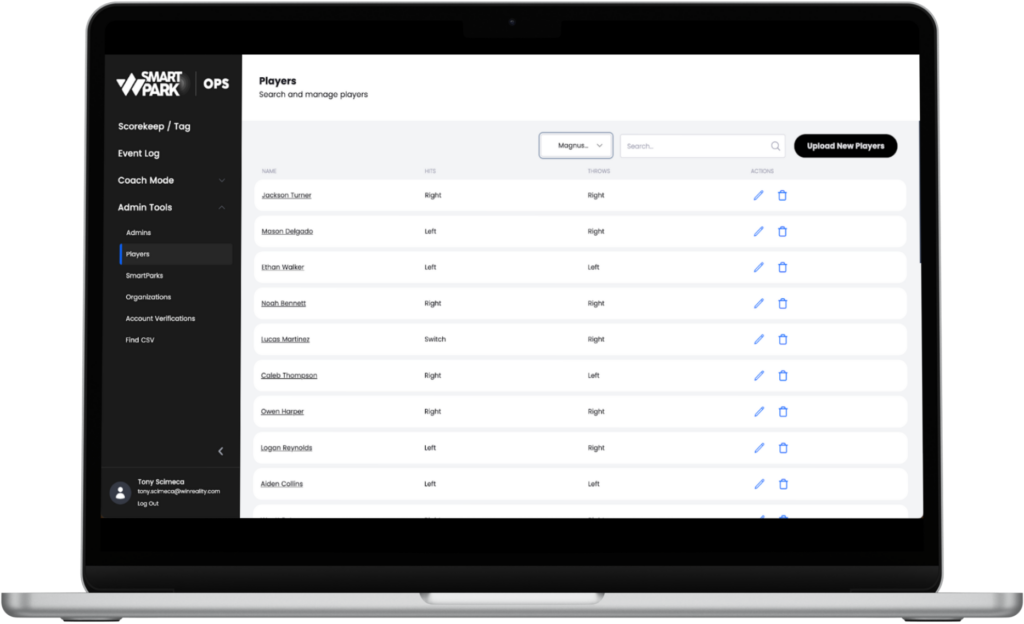
- Navigate to SmartParkOps.com and go to Players, then select Upload New Players for each team.
- Enter the minimum required fields and the following player info: Jersey Number First Name, Last Name, and Handedness for each player.
- During upload, choose whether to create a new roster from the CSV or add players to an existing roster.
- Save each team as its own roster (home team and each opponent team).
Best Practices
- Prepare opponent rosters before game day so you are not building them on-site.
- Double-check handedness entries — this data is used for pitch-tracking accuracy.
- If rosters are integrated from a 3rd party provider (such as Playbook365), they will auto-populate and do not require manual upload.
Strike Zone Configuration
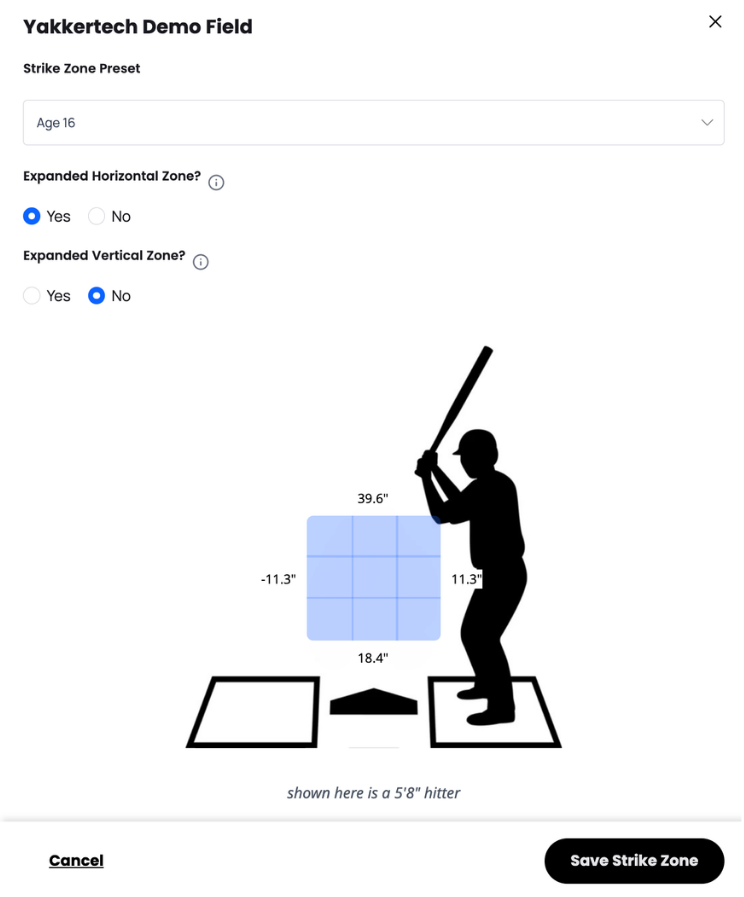
Before the game begins, the Field Operator configures the strike zone to match the age group, skill level, and league preferences for the event. Strike zone configurations are completed on in SmartPark Ops.
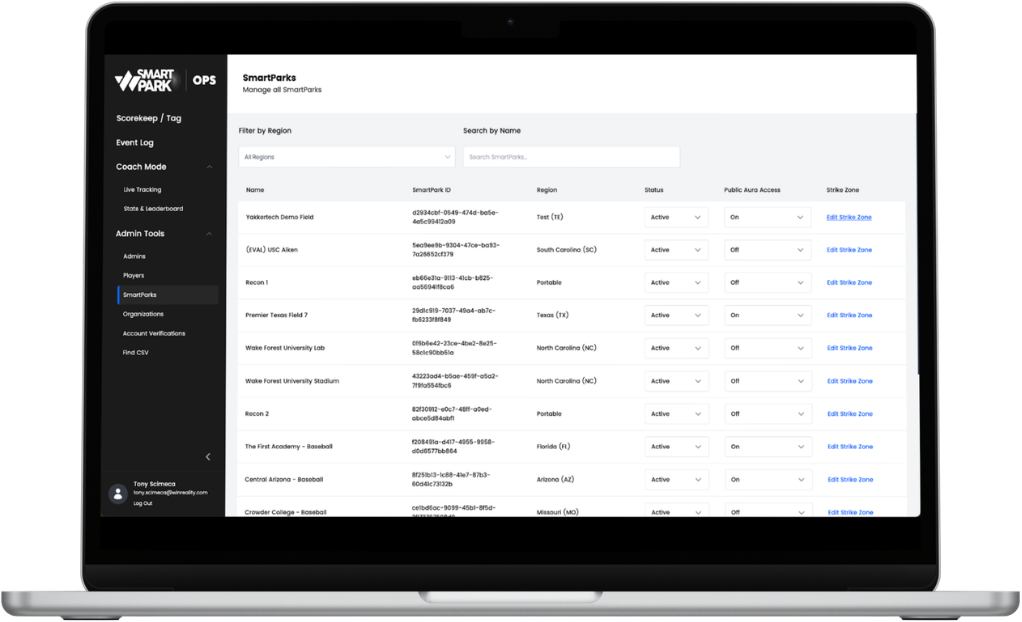
- Go to the SmartParkops.com page and select Edit Strike Zone.
- Select an Age Level preset that best matches your players’ age and median height. Use the Median Height shown on the page to guide selection. If players are smaller or larger than the median, adjust the age level accordingly.
- Optional: Use the zone expansion toggles to make the zone more generous. Expanding left/right or top/bottom by approximately one baseball diameter is recommended for lower skill levels, where more strikes help pace of play.
- Horizontal Zone: Adds one baseball (approximately 2.9 inches) to the inside and outside edges of the strike zone.
- Vertical Zone: Adds one baseball (approximately 2.9 inches) to the top and bottom of the strike zone.
Building Lineups
Building lineups ensures the tagging and scorekeeping system correctly identifies which player is hitting and pitching on every pitch. This step directly affects the accuracy of post-game data attribution.
How to Build a Lineup
1. Go to Scorekeeping, then select Tagging in the SmartPark Ops interface.
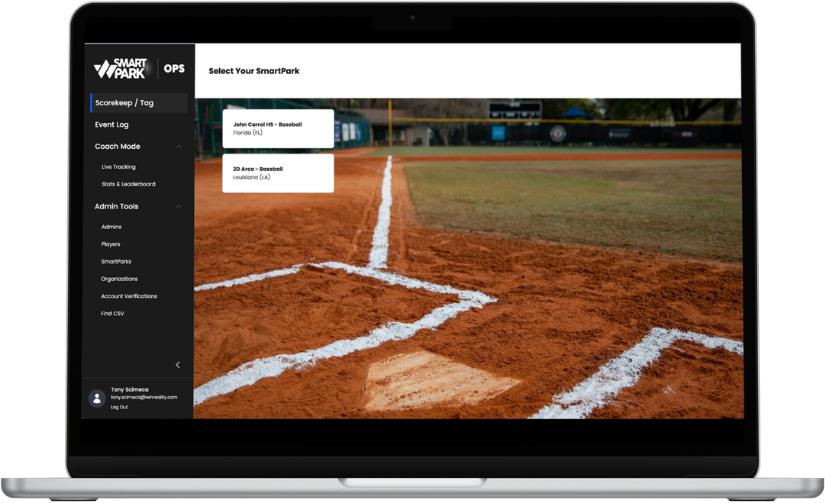
2. Select your Field (where your SmartPark is located), then select the Game. Confirm the Home Team and Away Team.
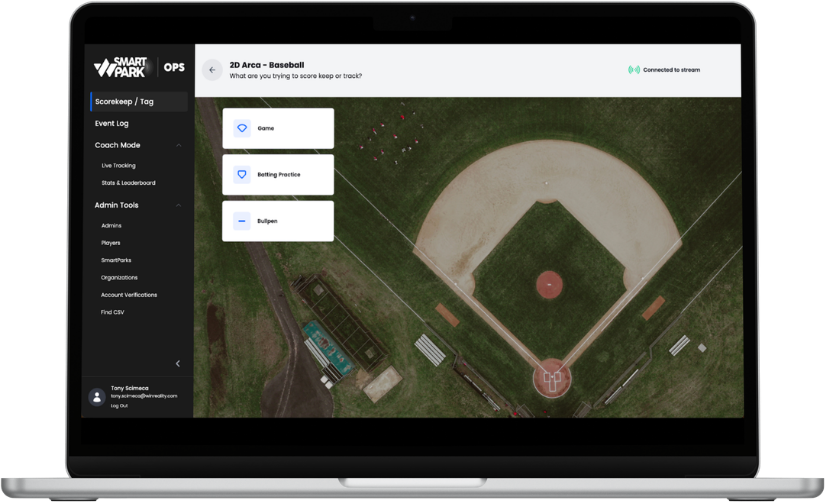
3. In the team dropdowns, choose rosters from My Organizations. Select the Home roster and the Away roster.
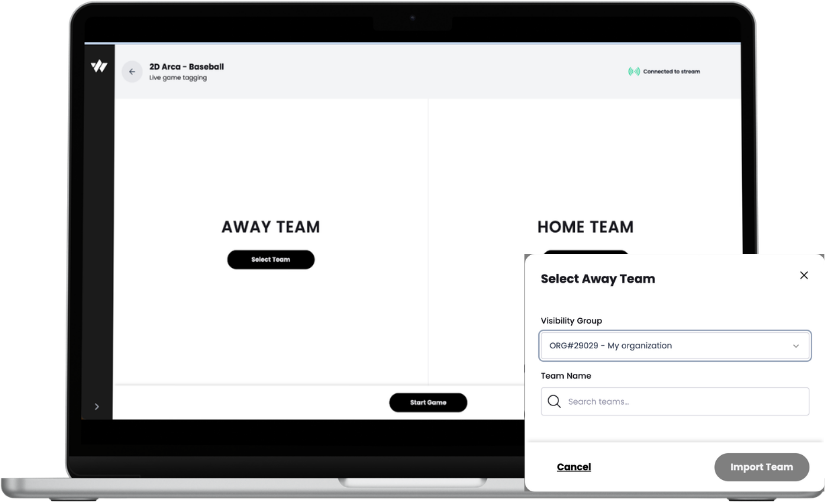
4. Set the Starting Pitcher, Starting Catcher, and Batting Lineup for each team. Bench players can be tagged or substituted in later during the game.

5. Start the Game once lineups are confirmed.
Important Notes
- Lineup is flexible: there is no requirement for a full lineup and no maximum of 9 — use the number of players you need.
- The most important rule during the game: on every pitch, confirm the current pitcher and current hitter (at-bat) are correct. This is what ensures post-game data downloads map to the right players.
ABS Testing
Before every game, the field operator must complete a pregame ABS connection and signal check to confirm the system is functioning properly.
ABS Testing Procedure
- Load the SmartPark app on a mobile phone or Apple Watch (coming fall 2026). Select or scan the current field and confirm the green “Connected” status.
- Throw a test pitch to confirm the ABS system responds and all cameras are tracking as expected.
- The LED board should signal “Ball” or “Strike” after the pitch.
- The exact location of the pitch should be plotted on the strike zone in the app.
- If no response or delay occurs, notify the event operator or field tech before starting.
- ABS is ready if pitches are tracked as expected and the LED board is working. After completing the pregame ABS check and confirming the system is working properly (green “Connected” status plus successful test pitches in warm-ups), the umpire may officially start the game.
Download the Guide (PDF) below for more information on SmartPark Ops pregame workflows.